![method grid favicon.svg]](https://help.methodgrid.com/hubfs/method%20grid%20favicon.svg)
Note: The video libraries and the video hosting module are a paid add-on, to enable this feature please contact us.
You can add captions and subtitles to your videos. There are two ways to add captions to a video: generating via AI or uploading a caption file.
AI Generated Captions
Generated captions use artificial intelligence based speech-to-text technology to generate closed captions for your videos.
A video must be uploaded and in a ready state before captions can be generated. Once the video is uploaded and in the ready status:
- Find the video in the library
- The captions column for each video will show either yes or no depending on whether a video has captions or not, click on yes or no to open the captions interface
- Click generate AI captions
- Select the language you want the captions to be generated in (this currently only supports English)
- Select generate
- Your captions will then be generated and made available for users watching the video
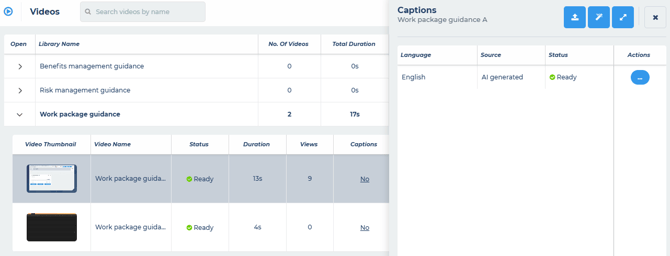
Manually Uploaded Captions
You can also add your own captions as .vtt file:
- Find the video in the library
- The captions column for each video will show either yes or no depending on whether a video has captions or not, click on yes or no to open the captions interface
- Select upload caption file
- Select the language of your captions
- Upload your .vtt file
- Your captions will then be uploaded and made available for users watching the video
Manage Captions
The captions interface shows you all the captions available for the video by language. Each language shows the source (uploaded or AI generated) and the status (processing or ready).
Videos may include captions for several languages, but each language must be unique. For example, a video may have English, French and German captions associated with it, but it cannot have two English captions.
Delete Captions
- Find the video in the library
- The captions column for each video will show either yes or no depending on whether a video has captions or not, click on yes or no to open the captions interface
- Click the ... actions button
- Select delete
- Confirm deletion
Note: Caption deletion is permanent and cannot be undone.
Download Captions
- Find the video in the library
- The captions column for each video will show either yes or no depending on whether a video has captions or not, click on yes or no to open the captions interface
- Click the ... actions button
- Select download
- Save the .vtt file
Note: You can download any captions file, including those generated by the AI, which you can then edit manually and re-upload.