![method grid favicon.svg]](https://help.methodgrid.com/hubfs/method%20grid%20favicon.svg)
Note: The video libraries and the video hosting module are a paid add-on, to enable this feature please contact us.
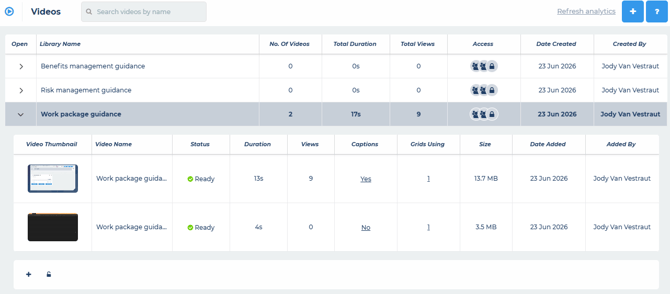
Adding Videos
- Expand the video library into which you want to add a new video
- Click the plus button
- Select the video you want to add, you can either
- Drag and drop videos or
- Click to upload videos
- Once you have selected the videos to add, the encoding and preparation process will begin. Depending on the size of the videos being uploaded, this can take some time.
- Once the process has complete, open the video library again and you will see the videos there with the status of ready, meaning they are ready to use across Method Grid
Note: You can see who added each video and the date it was added, alongside information regarding the video such as views and duration.
Naming Videos
- Double click on the name of the video you want to edit
- Enter the new name
- Click out or press enter to confirm the change
Replacing/Updating Videos
You can update a video without affecting where it is used in Method Grid and without losing the analytics data associated with it:
- Right hand click on the video you want to update
- Select replace file
- Select the video you want to replace it with
- The video will then be replaced
Note: Replacing a video leaves the video analytics in place and the video stays in your content, you are simply replacing the video file that is shown.
Deleting Videos
- Right hand click on the video you want to delete
- Select delete
- Confirm deletion
Note: This action will remove the video from all grids it is currently being used in. To remove it from specific grids you can edit the video within the grid.
Note: You can also use the standard keyboard shortcuts, shift key + mouse click (to select adjacent cells) or ctrl key + mouse click (to select non-adjacent cells), to select multiple videos at once and then right click to delete all the selected videos.