![method grid favicon.svg]](https://help.methodgrid.com/hubfs/method%20grid%20favicon.svg)
Note: The video libraries and the video hosting module are a paid add-on, to enable this feature please contact us.
Managing Videos in Video Libraries
You can use libraries to manage and categorise the videos you host on Method Grid.
Think of these libraries as the folders in which your videos are stored and organised, much like the folders on your PC or SharePoint. You can then give members of your account access to these folders so that they can manage, view, add, edit and delete videos.
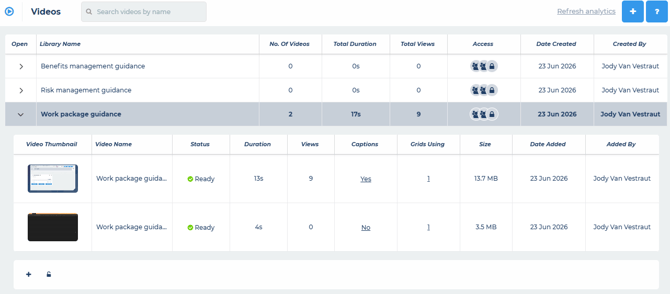
Creating Video Libraries
To start using videos, you first need to create your video libraries. Only architect (admin) level members can create video libraries. To create and manage your video libraries:
- In the left hand navigation click on the light bulb icon
- Select Videos
- Click the plus button at the top of the page to create a new video library
- Configure who should have access to this library
- Your new video library will appear at the bottom of the list of libraries
Note: You can see who created each library and the date it was created, alongside information regarding the videos within the library such as views and duration.
Naming Video Libraries
To name your video libraries you must have at least edit access to the library, you can then simply double click on the library name to edit it.
Managing Access to Video Libraries
You can give your account members access to your video libraries in the same way that you manage access to folders and grids. There are 3 levels of access:
- View = the member can view the video library and the videos within it
- Edit = the member can view, edit and delete the video library and the videos within it
- Manage = the member can manage access to the video library and view, edit and delete the video library and the videos within it
To manage access to a video library, click the library’s padlock icon. To manage access you must have at least manage access to the library.
Note: External account members do not have access to these video libraries, they only see videos within grids to which they have access.
Deleting Video Libraries
To delete video libraries you must have at least edit access to the library, you can then simply right click on the library and select delete.
You can also use the standard keyboard shortcuts, shift key + mouse click (to select adjacent cells) or ctrl key + mouse click (to select non-adjacent cells), to select multiple libraries at once and then right click to delete all the selected libraries.
Note: Deleting a library will permanently delete it and all the videos within it, this cannot be undone. This action will remove the videos from all the grids in which they are used. To remove a video from specific grids you can edit the video within the grid.