![method grid favicon.svg]](https://help.methodgrid.com/hubfs/method%20grid%20favicon.svg)
Once a task is set to require file evidence, it cannot be marked as completed until the file evidence is added.
Contents
- Adding a File as Evidence to a Task
- Turning on File Evidence for a Task
- Providing File Evidence Templates and Instructions
- Grid Cloning
- AI Quality Assurance
Adding a File as Evidence to a Task
To add a file to a task:
- Open the item that contains the task you want add the file to
- Click the document icon by the task
- Select Add task files
- Upload, link to or select the file (from your document management system)
The file will appear below when successfully added. You can continue to add further files, or you can close the task files area and complete the task.
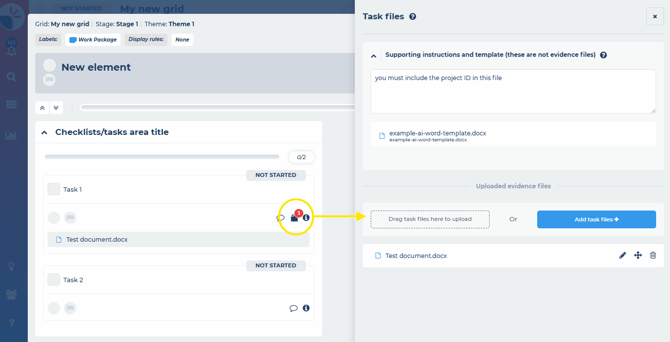
Note: You can use the edit icon to change the file and click the delete icon to delete it.
Note: Members with edit or manage access to a grid can complete and upload files to any task irrespective of the assignee. Members with view access to a grid can complete and upload files to any task that is assigned to them or that is unassigned. They cannot complete or add files to tasks assigned to other members.
Turning on File Evidence for a Task
Members with edit or manage access to a grid can set tasks to require file evidence. To do this:
- Toggle on edit mode
- Open the item that contains the tasks you want to edit
- Click the document icon by the task you want to enable file evidence for
- Set Task completion requires file evidence to Yes
The task can now only be completed if a file is added.
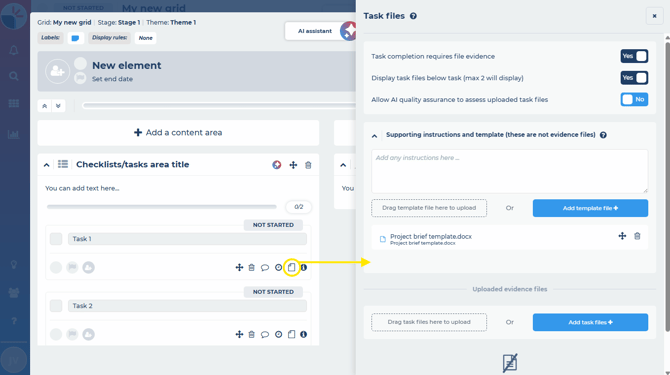
You can also choose to display files added to the task below it in the tasks area. To do this, set Display task files below task (max 2 will display) to Yes.
If your account has access to the AI Assistant and AI QA, you can also allow the AI to quality assure task files based on your set criteria. To do this, set Allow AI quality assurance to assess uploaded task files to Yes.
Providing File Evidence Templates and Instructions
Once turned on, members with edit or manage access can further configure the task file options to provide a specific file template and provide instructions for team members completing the task.
Template Files
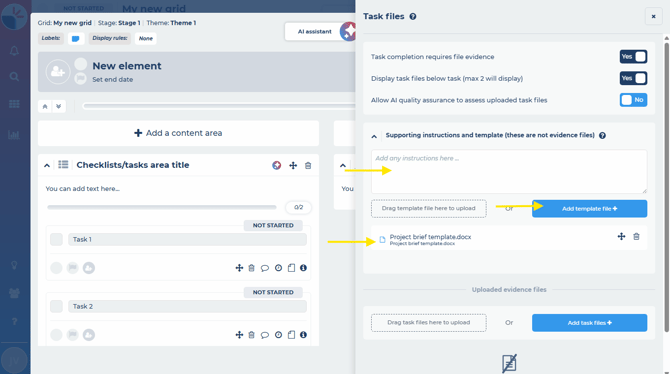
If you want team members to use a specific template file to complete this task, you can add a template:
- In the section Supporting instructions and template (these are not evidence files)
- Select Add template files
- Upload, link to or select the template from your document management system
Team members will now see and can use this template, when viewing the task files area.
Note: You can use the edit icon to change the file and click the delete icon to delete it.
Note: only one template file per task can be added.
Instructions
If you want to provide team members with further written instructions relating to this task, you can add these:
- In the section Supporting instructions and template (these are not evidence files)
- Type in your instructions
Grid Cloning
When grids are cloned, they will retain your task settings including whether the task requires file evidence, the file template and any instructions you’ve added.
AI Quality Assurance
If your account has access to the AI Assistant and AI QA, you can allow the AI to quality assure task files based on your set criteria. To do this, set Allow AI quality assurance to assess uploaded task files to Yes.
The AI will use your template file and any instructions you’ve added when assuring the files added to the task i.e. you might require the project ID to be present in the file, you can tell your team members this and the AI, by writing this in the instructions area e.g. ‘you must include the project ID in this file’. The template itself can also contain instructions that the AI will use e.g.
Project Purpose
[Insert a concise statement describing the fundamental reason for the project. This should reflect the underlying need or problem being addressed and align with the client’s or organisation’s strategic objectives. Guidance: The purpose should answer “why is this project being undertaken?” rather than “what is being delivered?”. Formatting: 2-3 paragraphs of plain text.]