![method grid favicon.svg]](https://help.methodgrid.com/hubfs/method%20grid%20favicon.svg)
Important note: AI QA is currently in beta and only available to certain accounts and team members. If you would like to use it, please contact us.
Contents
- How to QA a Document
- AI QA Scoring Methodology
- Setting up File Evidence Templates and Instructions
- Grid Cloning
- AI QA Best Practice
- How to Get Advice and Help
How to QA a Document
AI document QA, when enabled, is part of the task file evidence functionality. To have the AI QA your document:
- Open the item that contains the task to which you want to add file evidence.
- Open the task files interface by clicking on the file icon of the relevant task.
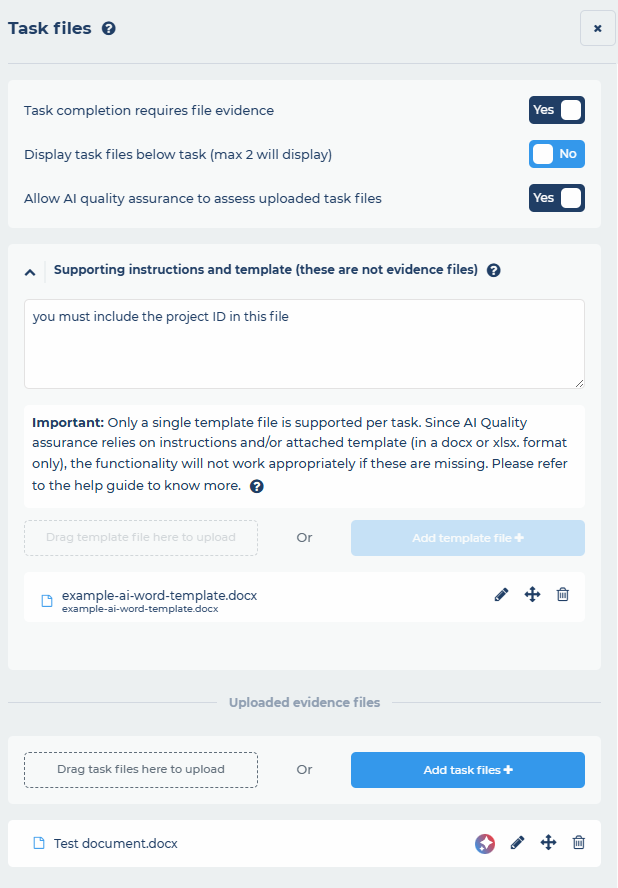
- Task files will open, in which you will find any templates to be used for this task and any special instructions relating to best practice for this document template.
- When you are ready to add your completed document file, select add task files.
- Then select from computer with AI assisted quality assurance assessment (note, this immediately starts the AI QA process when you upload the file, select from computer to upload the file without AI QA).
- Now upload your completed document (note, only uploaded Word (.docx), Excel (.xlsx) and PDF (.pdf) files are currently supported by AI QA).
- The AI will now QA your document, depending on the size of your file, this can take a few minutes. The AI will compare your uploaded file to the file template for the task, instructions within that template and any instructions added to the task.
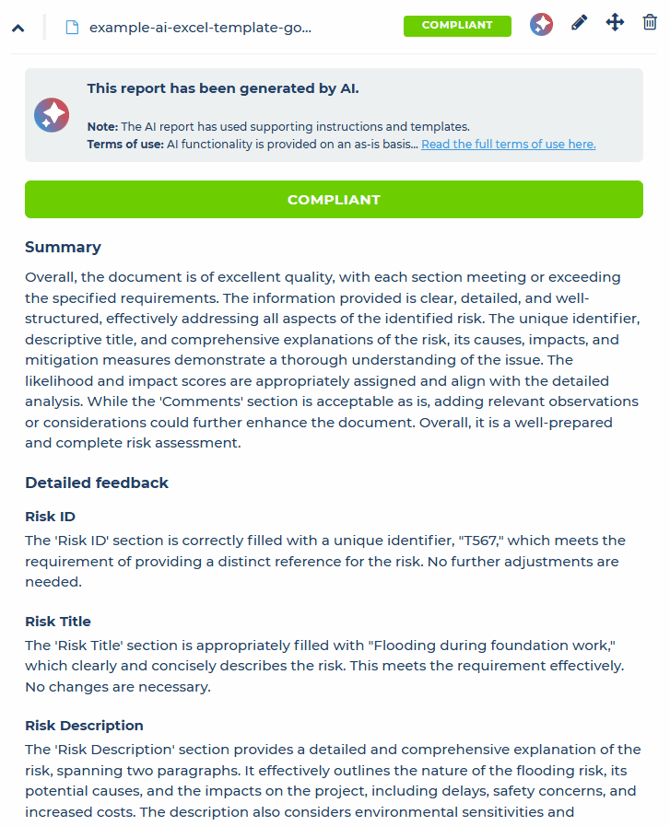
- Your QA score and report will then be displayed, this will include:
- Your overall quality score, see below for the scoring methodology.
- A summary of your overall document.
- Detailed feedback on each section in the document
You can now either complete the task, act on the feedback from the AI to adjust your document and start the process again, delete the report or come back to the task later.
Note: You can use the edit icon to change the file and run the QA again and click the delete icon to delete the file and the AI QA report.
Note: QA reports produced by AI are clearly marked as being AI generated.
AI QA Scoring Methodology
The AI quality score is based on the best practice offered by ISO19011. While ISO does not mandate a specific scoring system for assurance/audit findings and grading, the industry standard for reporting is:
- Compliant: Requirements met.
- Opportunity for Improvement (OFI): Small, non-mandatory improvements.
- Minor Non-Conformance (NC): Low-risk failure to meet a requirement.
- Major Non-Conformance (NC): Significant risk or total failure to meet a requirement.
The AI will give your document an overall score from one of these four options.
Setting up File Evidence Templates and Instructions
Members with edit or manage access can configure the task file options to provide a specific file template and provide instructions for team members completing the task and for the AI completing the QA.
You can learn more about configuring file evidence templates and instructions here.
Grid Cloning
When grids are cloned, they will retain your task settings including whether the task requires file evidence, the file template and any instructions you’ve added.
AI QA Best Practice
The effective use of AI hinges on the quality of information and instruction that you give to the AI. Without quality input in the form of your document templates, the guidance within the templates and the quality of your instructions, the AI will struggle to effectively QA documents for you.
Document Templates Best Practice
You can learn more about document template best practice here.
AI QA Instructions Best Practice
These instructions are for AI and for humans, they need not be different, they should be the same.
The AI will use your template file and any instructions you’ve added when assuring the files added to the task i.e. you might require the project ID to be present in the file, you can tell your team members this and the AI, by writing this in the instructions area e.g. ‘you must include the project ID in this file’.
How to Get Advice and Help
You can contact us to get help and advice at any time.