![method grid favicon.svg]](https://help.methodgrid.com/hubfs/method%20grid%20favicon.svg)
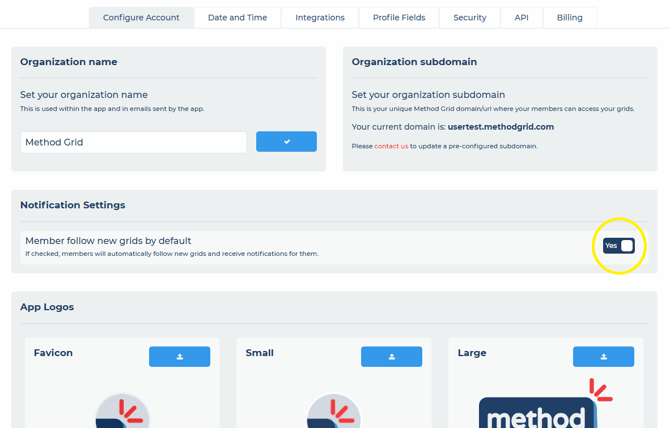
To change this default setting for your account, you must have admin (architect) role access:
- Open account settings (click on your profile image bottom left and then select account settings)
- Toggle Member follow new grids by default to either yes or no:
- Yes:
- Members will automatically follow new grids (that they have access to) and receive notifications relating to the grid as configured in their personal notification settings.
- Members can then choose to unfollow the grids they do not want to receive notifications for.
- No:
- Members will NOT automatically follow new grids (that they have access to) and will NOT receive notifications relating to the grid.
- Members can then choose to follow the grids they want to receive notifications for in their personal notification settings.
- Yes:
Note: if you change this to unfollow by default, any member that has previously configured a specific grid from unfollow to follow, will still be following that grid. Only new grids and existing grids that they have not set to be followed will change to the new default.
Configure Member Notification Settings
Each member can choose which grids they wish to follow, irrespective of the default account setting. The default setting simply chooses the default for your account, your members can still configure their own notification settings as required.
You can learn more about configuring your personal notification settings here.